
Inspect a Facebook Profile’s Cover Image
How It Works
Search with a Facebook handle or public account URL to find its accessible banner. The returned avatar, name, username, intro, and profile link help confirm the match before the cover opens in a wide preview. If several cover images are detected, compare them before saving while the profile picture remains available for identification.
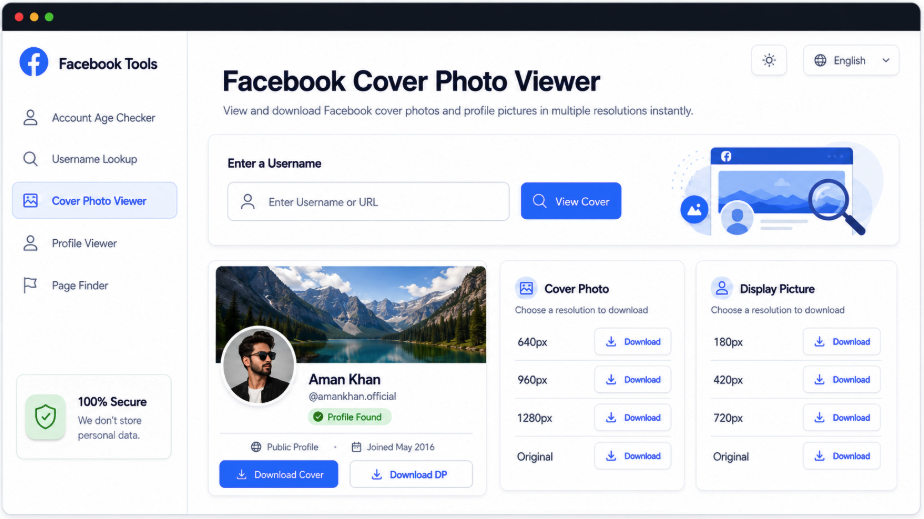
See the Banner Alongside Its Source Profile
A cover photo is easier to attribute when the account information appears with it. AccountPeek combines the available banner, avatar, full name, handle, intro, and profile URL in one result, allowing you to check the user before selecting an image to download.
A Wide View of the Cover Image
Avatar and Account Identity Beside It
Banner Sizes Returned by the Source
Separate Full-View and Saving Controls
Establish the Banner’s Source
Profile Photo, Name, and Intro
Compare Cover Versions
Different Banner Versions
Inspect the Wide Image
Enlarge the Cover and Save
Explore the Profile Behind the Banner
Follow a cover-image check with a more focused look at the avatar, posts, photographs, reels, account timeline, or full profile. AccountPeek’s related Facebook tools use the same handle-or-URL approach while each concentrates on a different part of the publicly available account.
Open the Account’s Wider Profile View
Examine supported identity details, intro text, avatar, banner, posts, photos, and reels together.
Review the Source ProfileCompare Facebook Avatar Sizes
Confirm the source account, inspect its detected display-picture versions, and download an accessible DP file.
Compare Avatar VersionsBrowse Other Public Facebook Images
Move through supported photo collections, enlarge individual pictures, and save accessible files from the account results.
Inspect Other PhotosInspect the Banner’s Full Width Before Downloading
The usual profile layout may crop a cover image. Opening the detected banner in the larger viewer lets you examine its full width, original proportions, and visible quality. The selected resolution remains visible, helping you assess the actual version before saving it.
Open the Complete Cover
Save the Best Available Banner Version
Examine the Whole Image Before Saving
Premium Options for Cover-Image Research
Unlimited Searches for Profiles and Banners
100%
Access to Available Cover Resolutions
98%
Capabilities of the Cover-Photo View
This viewer pairs public Facebook banners with the identity information needed to verify their source. After a handle or URL lookup, available account details appear before the wide cover preview. The profile picture stays visible during inspection, and multiple detected covers can be compared when available before you choose one to save.
Wide Banner Inspection
A dedicated preview gives the accessible cover image room to display its width and visible detail.
Keep the Source Profile in View
The account’s avatar remains nearby to help confirm the identity associated with the banner.
Compare Retrieved Cover Images
When more than one public cover is detected, review the alternatives before choosing a file.
Start with a Handle or Address
Either the Facebook username or its public profile URL can identify the account for a cover lookup.
How a Cover Image Is Retrieved
The tool locates the public account matching your Facebook handle or profile link and displays available identifying details first. It then checks for accessible cover imagery and presents a detected banner in the wide viewer. If additional covers are returned, compare them while the profile context remains visible, then use a supported saving option.
Identify the Facebook Account: Supply its username or public profile link to request the banner.
Verify the Source Details: Confirm the name, avatar, and other returned information before selecting a cover.
Inspect the Banner Options: Review detected images, compare alternatives if available, and save your chosen accessible file.
Frequently Asked Questions
Submit the account handle or public URL and verify the profile details returned. A detected cover appears in the dedicated wide preview. Where more than one image is available, compare them before selecting a supported file to save for your reference or research.
No. Multiple covers appear only when the lookup detects more than one publicly accessible image. The result depends on what can be retrieved at that time: a profile may supply several banners, a single cover, or no accessible cover image at all.
An incorrect address, renamed or unavailable account, deleted banner, privacy restriction, or insufficient public data can prevent retrieval. Temporary connection faults and Facebook changes can also interfere. Confirm the input and retry; a missing image can simply mean no supported public cover is available to the tool currently.